You need to enable the Budget Planning mode to enter your budget forecasts.
For more information on setting up this mode, click here.
You usually enter data in the Operational Budget. The amounts are automatically calculated in the Treasury Budget according to macros.
 Mixed Budget
For a specific period of time of the Treasury Budget, you may also replace Budget Forecasts by Actuals, i.e. by Cash Flows from Cash, using Import Actuals function. You can then display a budget called "mixed budget".
Managing Amounts
Within the budget sheet, every cell displays an (editable or not) amount resulting from one or more budget transactions which are grouped by budget codes and time periods (depending on the periodic division selected in the sheet filter, usually months).
Some of these cells are editable, others are automatically filled by calculation. The editable cells are displayed in black and the non-editable cells are displayed in red by default. To change font colors, see topic Display Preferences.
- The editable cells are not managed by macros. You can directly enter amounts in these cells.
Important
If the cell already contains an amount, it is overwritten by the amount newly and directly entered in the cell. If you want to add a transaction to an existing one, use the Cell Detail Form. For more information on the detail form, see topic Details of a Transaction Amount.
- The non-editable cells display category subtotals, totals or other types of amounts managed by macros, or created from Cash Flows of Cash.
Some standard cells (category subtotals, totals, VAT) do not authorize any action.
For an amount which is partially entered, you cannot enter amounts with the keyboard as long as a calculation formula is active on a cell, however other actions are possible such as the ones described below:
- You can add a transaction using the Cell Detail Form.
For more information on the detail form, see topic Details of a Transaction Amount. - You can add a transaction using the Cell Detail Form.
For more information on the detail form, see topic Details of a Transaction Amount.
Important
Budget sheets may be edited by only one user at a time. The first user that opens a budget sheet, owns the exclusive edition rights as long as the sheet remains open.
Available actions for Budget Sheets:
Entering manually an amount in a cell
- Keyboard Entry
To enter manually an amount in an editable cell, click it and enter your amount using your keyboard. Validate your entry by clicking the Enter key.
- Using Calculator
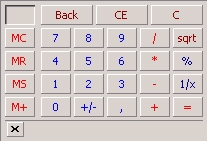
You can also use the calculator. To display it, click an editable cell and then the button  .
.
- Copy and Paste
You can copy and paste the contents of one cell or several cells within a single budget exercise or in two different exercises.
You can also perform this action between your budget and a spreadsheet in Microsoft® Excel®.
- Right-click the cell or the selection of cells to copy, then from the contextual menu, select the Copy option.
- Right-click the cell where you want to paste the amount, then from the contextual menu, select the Paste option.
The amount is pasted as a unique transaction: if the copied cell contains several transactions, only the total amount is copied in the unique transaction.
When an amount is pasted in a cell:
- Existing transactions in this cell with entered amounts are overwritten.
- Existing transactions in this cell with calculated amounts are not overwritten, but are disabled.
You can re-enable these transactions by selecting the Enabled options in the transactions table displayed in the Cell Detail Form.
For more information on the detail form, see topic Details of a Transaction Amount.
Info
You cannot copy/paste system budget codes.
You delete from a cell all the transactions whose amounts were entered manually. Only the calculated amounts are kept.
Right-click the cell, then from the contextual menu, select the Delete BT option.
If calculated amounts do exist for this cell, then you must display the Cell Detail Form to enter an amount. For more information on the detail form, see topic Details of a Transaction Amount.
Calculating Amounts in cells
You can apply a formula or a macro to calculate the amount.
You should use a macro if the calculation can be used for another cell or in the budget sheet designer. Otherwise, you should use a calculation formula.
For more information on creating a Macro applied to a cell, see topic Macros.
To create a calculation formula in a cell:
- Right-click in the editable cell.
A contextual menu is applied.
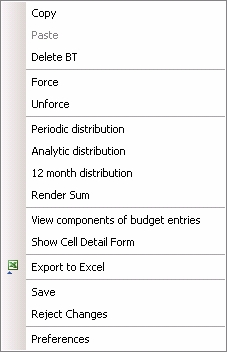
- In the contextual menu, select one of the two options below: These functions are described in topic Calculation Functions.
- Periodic Distribution
- Analytic Distribution
- 12-month Distribution
- Render Sum
The option Show Cell Detail Form enables you to add a formula to the cell. For more information on this feature, see topic Details of a Transaction Amount.
Enabling or Disabling Transactions with Formulas
The macros defined for the budget codes enable the automatic calculation of certain amounts according to other amounts. If a calculation macro cannot be applied to a budget code, you can disable the transactions with formulas for a cell, and then enter an amount.
Info
The disabled transactions are not overwritten. You can re-enable them at any time.
- To disable the transactions with formulas in a cell, right-click the cell, then select the Force option.
The cell amount is automatically updated and takes into account the transactions for which amounts have been entered manually.
- To disable the transactions with formulas in a cell, right-click the cell, then select the Unforce option.
The cell amount is automatically updated and takes into account the transactions for which amounts have been calculated.
If you want to check whether the transactions with formulas are enabled or disabled in a cell or if you want to enter an amount in a cell, display the Cell Detail form: right-click the cell, then click the Show Cell Detail Form button.
The page shows the enabled and disabled transactions.
For more information on this feature, see topic Details of a Transaction Amount.
Updating From Previous Period
This function must be used in the following cases:
- You completed a cell with a calculation involving a new transaction for the following exercise.
For example, you created a transaction in December for the VAT is to be calculated in January or for which a macro specifies a one-month deferment in the treasury budget for amounts posted in the operational budget.
- You rolled non-actual forecasts to the next period of the current exercise. For example, you rolled the non-actual forecasts of December to next January.
For more information on the deferment of non-actual forecasts, see topic Rolling Non-actual Forecasts.
In both cases, you must run the update function from the previous period in the budget sheet of the following exercise, for the corresponding transactions to be created.
Info
You can save a version of the exercise before updating it from the previous period.
- After entering the amounts in the budget, click the Save button in the action bar, then select the Save option to save the entered amounts.
- In the left pane of the budget entry page, double-click the next exercise to select it.
Info
You can save a version of the exercise before updating amounts from the previous exercise. See topic Revising Budgets for more information.
- When the selected budget sheet of the exercise is displayed, click the Process button, then select the Update From Previous Period option.
- In the dialog box, click OK to confirm.
The page Update From Previous Period opens up.
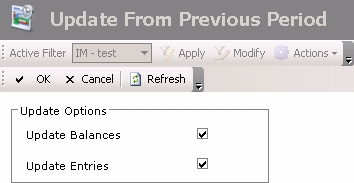
- Enable the option:
- Update Balances to update balances from the previous period,
- Update Entries to update transactions from the previous period,
The Refresh button allows you to update the page display.
- Click OK to validate the update or Cancel to cancel the action.
The Budget Sheet is updated from the amounts entered in the previous exercise.
Important
If entering a transaction or a deferment involves the creation of a transaction at least two periods after the current exercise period, you must update successively and in chronological order, the budget sheets for n+1, n+2 periods and so on until the specific period of the transaction to create.
Importing Actual Flows
This function enables you to import Cash Flows into the Treasury Budget and to view a mixed budget, i.e. a budget including both transactions from the Operational Budget and transactions created from Cash Flows.
Before importing, you must define the following criteria for Cash Flows:
- the period of time for the value dates of the flows to import,
- the flow statuses (Confirmed and/or Actual).
After import, the Treasury Budget is mixed.
- On the one hand, Actuals, i.e. Cash Flows imported from Cash, replace the original budget forecasts for the whole import period.
- On the other hand, it also includes Budget Forecasts calculated from the Operational Budget for the post-import period.
Before import, make sure that one of the following conditions is met for each cash flow, for it to be properly integrated.
- The cash flow must be associated with a budget code.
To perform a check, refer to the cash ledger report from the Cash module, as described in topic Viewing Details in Cash.
- The flow type associated with the cash flow must also be associated with a breakdown rule in the corresponding budget exercise.
To check this, see the tabs Posting Parameters and Breakdown Rules in the setup page for the corresponding budget exercise. For more information on these tabs, refer to topic Budget Exercises.
- Open in Budget Planning mode the last version of the exercise into which you want to import cash flows.
Click here for more information on this step.
Info
You can save a version of the current exercise before importing Cash Flows. See topic Revising Budgets for more information.
- When the version of the selected exercise is displayed in the budget sheet, click the Process button, then select the Import Actuals option.
- In the dialog box, click OK to confirm.
The setup page for Cash Flows Import Options is displayed.
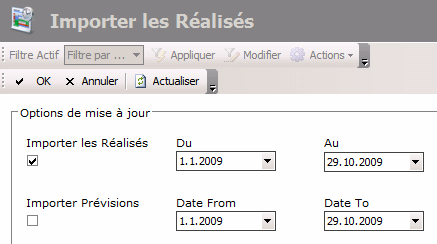
- To import the flows with "Actual" status:
- Enable the Import Actuals option.
- In the From and To fields, define the start and end dates of the period into which the value dates of cash flows to be imported, must be included.
- To import the flows with "Confirmed Forecast" status:
- Enable the Import Forecasts option.
- In the From and To fields, define the start and end dates of the period into which the value dates of cash flows to be imported, must be included.
Info
The cash flows with "Original Forecast" status cannot be imported.
Important
If you selected the Import Actuals and Import Forecasts options, the created budget transactions cannot be differentiated as Original Cash Flows.
- Click OK to validate the cash Flow Import or Cancel to cancel it.
The cash flows matching your criteria are imported into the Treasury Budget.
All the budget transactions from the period selected for cash flows, are deactivated.
To visualize a distinction for the mixed budget period, set up the following options in the display preferences: Column with Budget Data, Column with Mixed Data, Column with Treasury Data, System Row Color.
For more information on setting up display preferences, see topic Display Preferences.
The following snapshots present the the way a mixed budget is displayed with the following colors:
- The columns with only treasury data are displayed in pink. These columns correspond to the period of cash flow import. In the Treasury Budget, amounts of these columns only take into account the transactions created during the cash flow import.
- The columns with mixed data (cash flows and forecasts) are displayed in purple. The end date for the period of cash flow import is located in this column. As previously said, amounts of these columns only take into account the transactions created during the cash flow import.
- The columns with only forecasts (Treasury Budget Transactions) are displayed in blue. In the Treasury Budget, amounts of these columns are calculated based on the transactions existing in the Operational Budget.
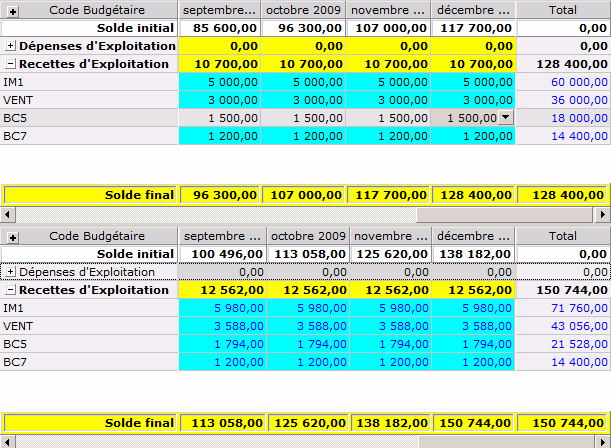
Displaying Budget before Cash Flows Import
In Planning mode, the budget display consists of two grids.
- In the top grid, the Operational Budget presents the initial forecasts.
- In the bottom grid, the Treasury Budget presents the amounts calculated based on the the Operational Budget.
Displaying Budget after Cash Flows Import
In Planning mode, the budget display consists of two grids.
- In the top grid, the Operational Budget presents the initial forecasts.
- In the bottom grid, the Treasury Budget presents mixed data:
- for the import period, Actuals (amounts imported from the cash flows in Cash),
- for the post-import period, the forecast budget (calculation based on the Operational Budget).
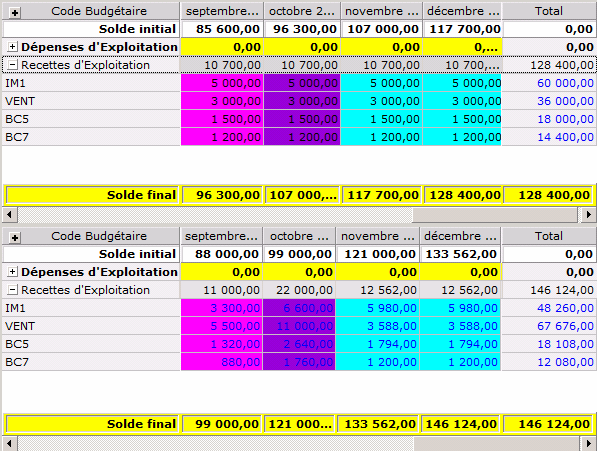
In this example, cash flows were imported until October, 30th. In the Treasury Budget, the amounts displayed until the end of October, are calculated based on cash flows. The corresponding columns are displayed in pink (cash amount), except for October which is displayed in purple (mixed treasury budget).
The columns in blue presents the amounts calculated based on the the Operational Budget.
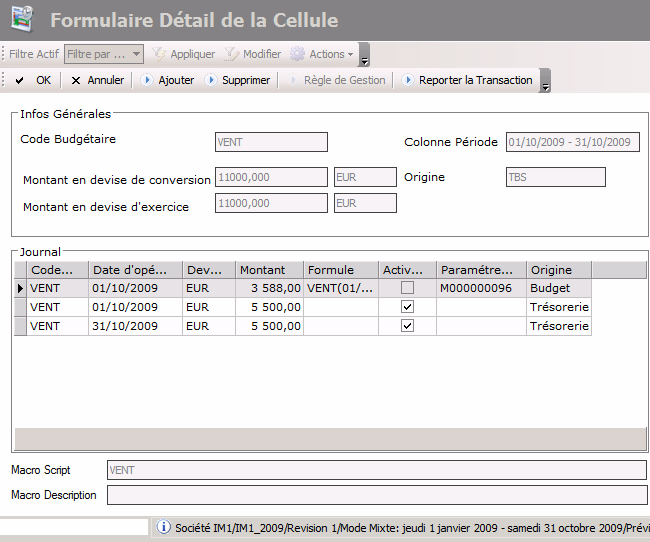
The cell detail form displays all the existing transactions for the selected budget item.
In the columns in pink (where cash flows were imported):
- The transactions created based on the Operational Budget are deactivated: the Enabled option is deselected and the Origin field takes the "Budget" value.
- The transactions created based on the cash flows are activated: the Enable option is selected and the Origin field is set to "Treasury".
To display a cell detail form, select the cell, right-click it and select Show Cell Detail Form from the contextual dropdown menu.
The detailed page for the selected cell is displayed.
The following snapshot shows a transaction from the Operational Budget and two transactions generated based on cash flows.
Available Actions after Cash Flows Import
| Addition | Modification | Activation/ Deactivation |
Deletion | |
|---|---|---|---|---|
| Operational Budget | ||||
| Same availability as before Cash Flows Import | ||||
| Treasury Budget | ||||
| 1. Mixed Period | ||||
|
N/A | No | No | No |
|
N/A | The following fields can be edited: Transaction Date, Currency and Amount, Description, Transaction Activation Flag, Transaction Macro. | Yes | Yes |
|
Yes Status for "Treasury" Transactions |
Same availability as before Cash Flows Import | ||
| 2. Standard Period | ||||
| Same availability as before Cash Flows Import | ||||
Recalculating Revisions
This function enables you to recalculate the amounts of the current budget sheet version, when one of the following modifications was performed since the last entry:
- modification of a macro,
- modification of the macro selection in the associated budget sheet designer,
- modification of the VAT calculation in the setup of a budget code.
You can save a version of the current exercise before recalculating amounts.
For example, if you modify the VAT rate applied to a budget code, you need to use this function to update the amounts including taxes in the Treasury Budget.
- Open the exercise for which you want to recalculate amounts and make sure that you are in Budget Planning mode.
Click here for more information on this step.
Info
You can save a version of the exercise before updating amounts from the previous exercise. See topic Revising Budgets for more information.
- When the selected budget sheet of the exercise is displayed, click the Process button, then select the Recalculate Revision option.
Amounts are updated in the Budget Sheet.
Resetting Revisions
This function enables you to definitively delete all transactions from a budget exercise version (including the transactions created based on cash flows using Import Actuals function).
Important
This action cannot be reversed.
- Open in Budget Planning mode the last version of the exercise into which you want to import cash flows.
Click here for more information on this step.
Info
You can save a version of the current exercise before resetting it. See topic Revising Budgets for more information.
- When the version of the selected exercise is displayed in the budget sheet, click the Process button, then select the Reset Revision option.
All budget transactions are deleted and amounts reset to zero in the budget sheet except for the opening balances.
Saving or Canceling Changes
During the budget data entry, you can save or cancel the changes since you last saved your budget.
In the action bar of the budget entry page, click the Save button, then, select in the contextual menu the Save or Reject changes options.
Data entry problems
- If you cannot enter an amount in a cell, this means that formulas may be still active in this cell. See topics Details of a Transaction Amount and Enabling/disabling transactions with formulas for more information.
- If you cannot enter amounts in any cell, this means that the analysis mode may be enabled or that new changes of the setup require recalculation. See topics Recalculating Revisions and Enabling Budget Planning mode for more information.


